
README file from
GithubAdjustable Media
Arrange, resize, and lay out images and videos in Obsidian like a modern canvas using layout blocks — stored via lightweight HTML comments, keeping 100% native Markdown with zero format lock-in.
Feature examples · 功能示例. In Obsidian, run Feature examples for an offline preview and a button to create a working copy with its media. The guide opens once when first available, including for existing users upgrading to the release that adds it.
The latest release is 0.7.0. Text boxes, multi-column text and numbered figures, tables and equations with cross-references were introduced in 0.4.0, following the text wrapping, movable layouts and editable text columns of 0.3. Download from GitHub Releases. See project status and validation for test coverage and known limitations, and layout improvement progress and next steps for the remaining layout work.
Features
🎨 Fluid, Intuitive Mouse-Driven Layout
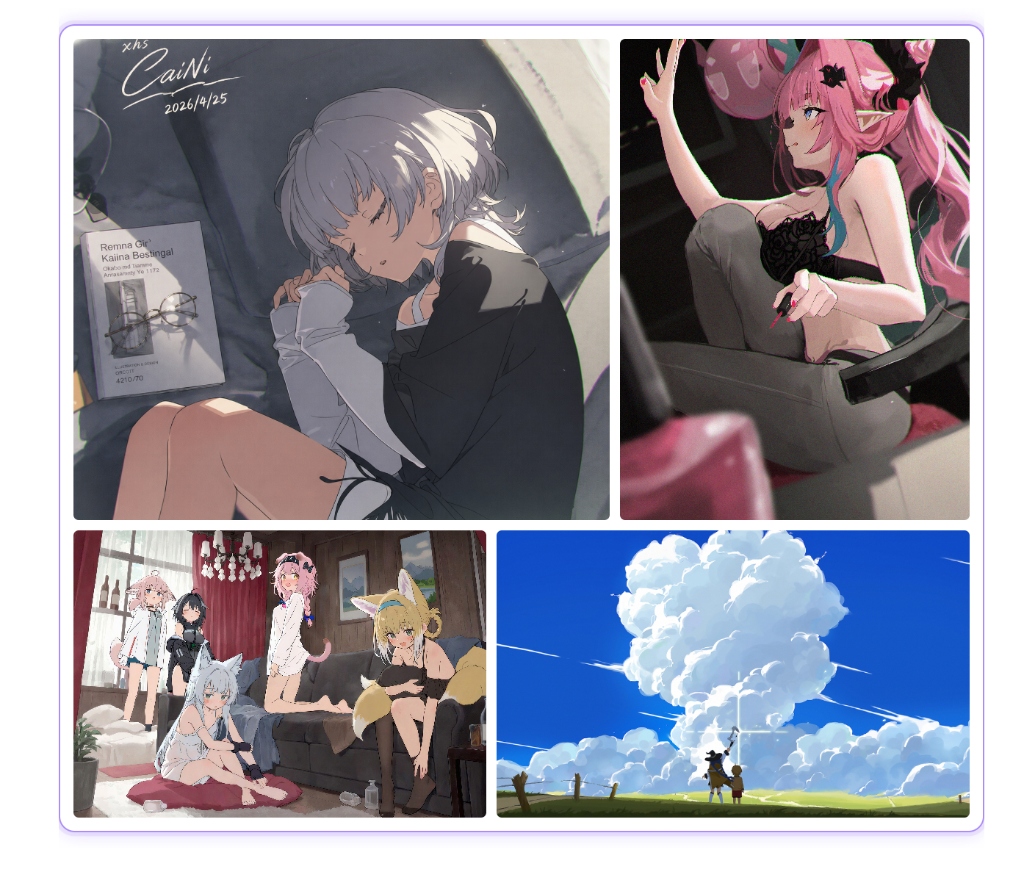
- Side-by-Side & Grids: Place images and videos side by side (up to 4 per row) with automatic height equalization.
- Direct Mouse Resizing: Drag the gap between two images to adjust column widths, drag a row's bottom edge to change height, or drag the outer frame to scale the entire layout block.
- Free Single-Image Placement: Slide a single image left or right across its row, with smooth magnetic snapping to left, center, and right.
- Text Wrap, like LaTeX's
wrapfigure: Float a layout to the left or right and let the note's own paragraphs, lists, quotes, headings and code flow around it, then continue at full width below it. The text beside it is ordinary note text: type right next to the image and it reflows as you go. - Text Beside Images, like Side-by-Side Minipages: Write text in a layout block before its media for a column on their left, after them for a column on their right, or both. It is ordinary Markdown (headings, lists, quotes, links), and the media keep the layout's width in the middle. The text lines up with the media at the top, in the middle or at the bottom. In Live Preview, click the text to edit it right in the layout, where it keeps the look of Live Preview (headings, bold text, bullets, task boxes, links, rendered math and images, wrapped list items lined up under their text) and the keys work as in the note: Tab indents, Enter continues lists, brackets pair up, typing
[[suggests links, and Obsidian's formatting, link, list, task and heading commands work on the hotkeys you gave them (Ctrl+B, Ctrl+I, Ctrl+K and Ctrl+L by default). Or right-click an image and choose Add text on the left or Add text on the right to start one. - Two-Column Text and Paper Drafts: A text box can flow its text through 2–4 columns that balance themselves, like
multicols, with its own column gap, alignment (including justified) and text size, and a narrow box can sit in the middle (right-click the box and choose Text settings…). Code, math and figures go inside the text, so a whole paper section can be one box. - Numbered Figures, Tables and Equations: End a caption with
{#fig:name}or{#tbl:name}, put\label{eq:name}in an equation, and write@fig:name,@tbl:nameor@eq:namein the text. Captions start with "Figure 1.", equations get their number, and references read "Figure 1" and jump to their target when clicked. The syntax is pandoc-crossref's, so the draft converts to LaTeX as it is. Choose English or Chinese numbers in the settings. - Text Boxes: A layout block can hold text alone, without media. It is drawn as one column of Markdown at the layout's width and can float left or right like an image, with the note's text wrapping around it: a sidebar or margin note. Select some lines and run the wrap command to make one; click the text to edit it, drag the frame's edge to set its width, and right-click it to float it or to remove the box and keep its text.
- Move Whole Layouts: Drag the grip on top of a layout's frame to move the whole block. Drop it in the middle of the text to place it between paragraphs, or in the left or right third to float it there, starting at the line you point at.
- Flexible Drag-and-Drop Reordering: Drag an item to reorder within a row, drop between rows to start a new row, or drag loose images from your note directly into an existing layout block.
- Double-Click Image Viewer: In editing mode, double-click any image in a layout block to inspect it up close; supports mouse wheel zoom, click-and-drag panning, and left/right arrow keys to switch between images in the block.
- Video Playback: Videos feature a dedicated drag button in the top-left corner, ensuring layout drags never accidentally trigger playback or the timeline scrubber.
🛡️ Zero Lock-in, Permanent Data Safety
- Native Markdown Syntax: Notes store standard Obsidian media embeds (
![[...]]or). - Minimal Comment Storage: Layout block settings are stored compactly inside a pair of HTML comments (
<!-- vml ... -->...<!-- /vml -->). - Seamless Multi-Platform & Publishing Compatibility: Even with the plugin disabled, on mobile, pushed to GitHub, or published to Hexo / Quartz / personal blogs, media still renders cleanly as ordinary embeds without clutter or broken tags.
- Refactor-Proof: Renaming or moving image and video files in Obsidian automatically updates links, keeping layouts completely intact.
⚡ Intuitive Editing Workflow
- WYSIWYG with Instant Source Switching: Features an illuminated control frame in editing mode; moving the cursor inside or clicking "Edit source" smoothly switches to plain Markdown text for effortless transitions between visual and handwritten editing.
- Automatic Layouts (Optional): When enabled in settings, multiple images or videos dropped from your computer or pasted will automatically be packaged into layout blocks.
- Single-Transaction Safe Writes: All modifications execute through a single editor transaction (with native Undo/Redo support), strictly verifying context anchors before writing, never altering untouched lines, blank lines, or indentations.
Quick Start
1. Create a Layout Block
- Right-Click Menu: In Live Preview, right-click any image or video and choose Wrap in a layout block.
- Command / Hotkey: Select one or more lines and run
Adjustable Media: Wrap selection in a layout(assign a dedicated hotkey in Settings → Hotkeys). Lines of media embeds are gathered into rows; lines with text are wrapped as they are, making a text box, or text columns beside the media. - Selected text menu: In Live Preview or Source mode, select text, right-click and choose Wrap selection in a layout. The command wraps the whole lines touched by the selection. It appears only when the selection can form a layout. To choose your own shortcut, open Settings → Hotkeys, search for Wrap selection in a layout, and assign a key combination; no shortcut is assigned by default.
- Drag & Drop: When a layout block already exists in your note, drag standalone images from the note directly into it.
2. Common Interactions
| Goal | Action |
|---|---|
| Adjust column width ratio | Drag the gap between two items |
| Change row height | Drag the bottom edge of the row |
| Resize the entire layout block | Drag the outer glowing frame (right edge for width, bottom edge for height, corner for proportional scale; a layout floating right uses its left edge and bottom-left corner; with text beside the media, the handles sit on the media column) |
| Position a single item | Drag the image horizontally; snaps smoothly to left, center, and right |
| Reorder or move items | Drag and drop onto adjacent spots, between rows (to split into a new row), or into another layout block |
| Wrap text around a layout | Right-click an item and choose Float left, wrap text or Float right, wrap text; No text wrap takes it back |
| Put text beside the media | Right-click an item and choose Add text on the left or Add text on the right, then type right there; later, click the text to edit it in place (Tab indents, Enter continues lists, [[ suggests links, and your formatting hotkeys such as Ctrl+B/I/K work; Esc or a click elsewhere finishes). The same menu lines the text up with the media at the top, in the middle or at the bottom |
| Move the whole layout | Drag the grip on top of the frame: the left or right third of the text floats it there from the line you point at, the middle places it between paragraphs |
| Move a video | Drag the dedicated handle in the top-left corner of the video |
| Full-screen image viewer | Double-click an image in Live Preview (scroll to zoom, drag to pan, arrow keys to switch); single-click in Reading View |
| Captions | Right-click an item to edit captions and alignment |
| Move out of layout block | Right-click an item and choose to remove it from the layout block |
| Cancel drag gesture | Press Esc anytime during a drag to cancel |
| View/edit source | Click the "Edit source" button in the top-right corner of the layout block (of its media, when there is text beside them) |
How It Works
Adjustable Media introduces no custom syntax. Your notes contain only standard embeds wrapped in clean HTML comments:
<!-- vml {"v":2,"rows":[{"height":240,"widths":[1,1.4]}]} -->
![[beach.png]] 
![[clip.mp4]]
<!-- /vml -->
-
The opening comment stores only essential parameters (row height, width ratios, captions, alignment), with zero unnecessary overhead.
-
A layout that wraps text sits right above the text that wraps around it, and says which side it floats to:
<!-- vml {"v":2,"width":0.4,"wrap":"left"} -->
![[portrait.png]]
<!-- /vml -->
This paragraph flows around the image, then continues at full width below it.
Without the plugin, the image simply shows above that paragraph.
-
Text written in a layout before its media shows in a column on their left, text after them in a column on their right:
<!-- vml {"v":2,"width":0.4} -->
Text on the left: several lines or paragraphs, lists, quotes.
![[beach.png]]
Text on the right.
<!-- /vml -->
Without the plugin, the text and the image show one after the other.
-
Embed syntax remains completely untouched, fully compatible with file renaming and moving.
-
If you ever decide to stop using the plugin, run
Remove layout block comments from all notes…to cleanly restore plain Markdown in one step.
Installation & Requirements
- Requirements: Obsidian 1.5.0 or newer (Desktop).
Method 1: Community Plugins (Recommended)
- In Obsidian, open Settings → Community plugins and turn off Restricted mode.
- Click Browse, search for Adjustable Media.
- Click Install, then Enable.
Method 2: Manual Installation
- Download
main.js,manifest.json, andstyles.cssfrom the latest release. - Place them into
<your vault>/.obsidian/plugins/adjustable-media/. - Restart Obsidian and enable Adjustable Media in Community plugins.
Notes
- Layout blocks must start at the beginning of a line (not nested inside quotes, callouts, or lists).
- Reading View only shows layout blocks; change them in Live Preview.
- Text inside a layout block goes before its first row of media (left column) or after its last row (right column). A block with text and no media is a text box. Text between two rows is left untouched and renders as normal Markdown. A layout with text beside its media does not wrap the note's text.
- No telemetry or analytics. Local media work offline; remote media embedded in a note still load from their source URLs.
License & Acknowledgments
- Released under the MIT License.
- Originally inspired by Fall-Makito/visual-media-layout, and rewritten from the ground up with a resilient comment-based storage model and safe transactional pipeline.