
README file from
GithubAdd To Vault (Obsidian Plugin)
A lightweight and modular service for adding articles, comments & finds to your Obsidian vault.
Transparency Notice: The architecture, backend logic, and frontend codebase were primarily written and iterated by Google's Gemini Pro large language model under the direction of a human project manager. The focus is on function, modularity, and privacy.
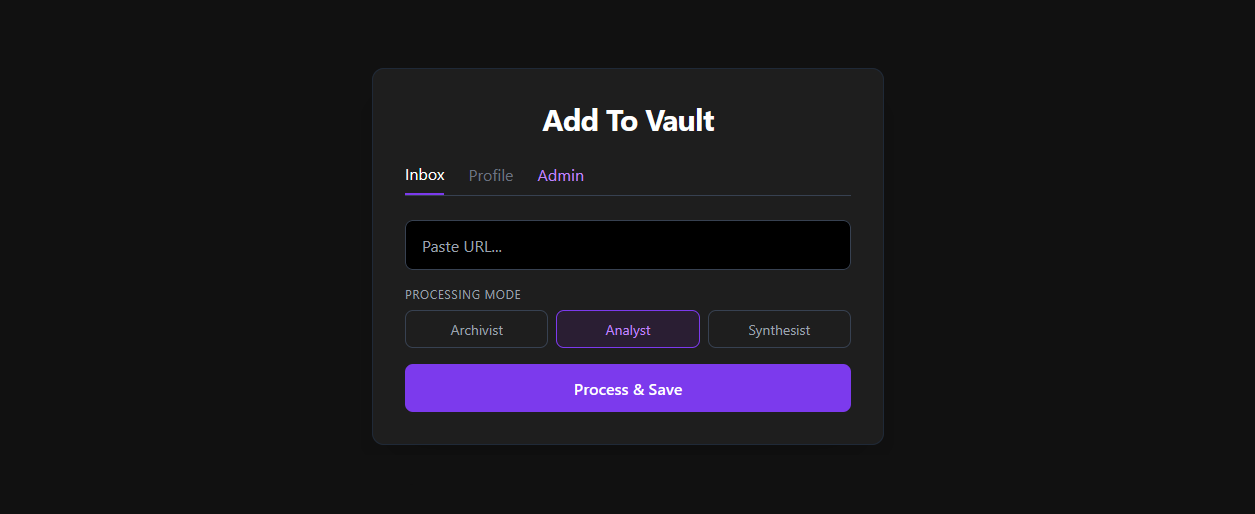
Overview
Add To Vault is a two-part system designed to capture, summarize, and link web content securely. While the backend server handles the heavy lifting (web scraping and LLM processing), this plugin sits quietly in your Obsidian vault and acts as the secure courier.
It performs two main tasks:
-
Pushing Context: It reads the filenames in your vault and securely pushes this index to your server. This allows the server's LLM to generate intelligent [[internal links]] to concepts you already know.
-
Pulling Notes: It periodically polls your server's secure inbox for newly generated markdown files, downloads them directly into your vault, and deletes them from the server.
Prerequisites
- An active, self-hosted instance of the Add To Vault backend.
- A generated Bearer Token (found in your server's web dashboard under the "Profile" tab).
- An API Key or local URL for your preferred LLM Provider (Google Gemini, OpenAI, Anthropic, Mistral AI, Kimi, or Ollama).
Manual Installation
Until this plugin is available in the official Obsidian Community Plugins directory, you can install it manually:
-
Download the latest
main.jsandmanifest.jsonfiles from the Releases tab (or build them from source). -
Open your Obsidian vault folder.
-
Navigate to
.obsidian/plugins/. -
Create a new folder named
add-to-vault. -
Place
main.jsandmanifest.jsoninside this new folder. -
Restart Obsidian, go to Settings -> Community Plugins, disable Safe Mode, and enable "Add To Vault".
Configuration & Authentication
Navigate to the Add To Vault settings tab inside Obsidian to configure the connection:
-
Create an Account: Visit your self-hosted server's web dashboard and register for an account.
-
Get Your Token: Once logged in, navigate to the Profile tab in the dashboard and click "Show / Hide Token". Copy this Bearer Token.
-
Obsidian Setup: Paste the token into the "Server API Token" field in the plugin settings. Set your API URL (e.g.,
http://192.168.1.100:8000).
Other Settings
- LLM Providers: Seamlessly switch the "brain" of your server between Google Gemini, OpenAI, Anthropic, Mistral AI, Kimi (Moonshot), or completely local Ollama instances. API keys are securely transmitted and stored on your own server.
- Model Validation: Enter your API key (or local URL for Ollama) and click "Validate" to automatically fetch and select from the latest supported models.
- Inbox Folder: The local folder where new notes should be saved.
- LLM Prompt Templates: Point to local
.mdfiles for Archivist, Analyst, and Synthesist modes. Variables supported:{title},{url},{content},{vault_context}.
Development
To build this plugin from source:
-
Clone this repository.
-
Run
npm installto install dependencies. -
Run
npm run buildto compile the TypeScript source code into the finalmain.jsfile.
Architecture
The project consists of a FastAPI backend utilizing SQLAlchemy (SQLite) for user management. Web scraping is handled via BeautifulSoup4. LLM interactions are orchestrated through LangChain. The frontend is a single-page HTML application styled with Tailwind CSS, served directly by FastAPI.
This plugin enumerates your vault's markdown files to build a context index for the LLM. No file content is uploaded — only filenames and tags are sent to your self-hosted backend.